

Manage Email Campaigns with Wajooba
Email Campaigns
💡 Prefer to use AI? You can create, design, and send email campaigns just by chatting with an AI assistant like Claude or Grok Bot. Learn how to connect Wajooba's MCP server and create campaigns with AI
Overview
Email campaigns let you send announcements, newsletters, event invites, and product updates to your contacts straight from Wajooba. You choose who receives the email, design the message, send yourself a test, and then send it to your audience.

What You Can Do
| Feature | What it does |
|---|---|
| Create a campaign | Set up a new email with a name, subject, and audience |
| Choose an audience | Send to all contacts or to a specific tag, such as "Sample Tag" |
| Design the email | Build the email from blocks like headings, text, images, cards, buttons, and dividers |
| Personalize | Add merge tags so each email includes details like the recipient's name |
| Send a test | Send the campaign to yourself or your team before it goes out |
| Send the campaign | Deliver the email to your whole audience |
Before You Start
| You'll need | Details |
|---|---|
| Admin access | Sign in to your Wajooba admin account |
| Contacts | Contacts in your account, with tags if you want to target a group |
| Content | Your subject line, message, and any images or links |
Step 1: Create a Campaign
- Sign in to your Wajooba admin.
- Go to Grow > Campaigns.

- Create a new campaign.
- Enter a campaign name, such as "Sample Campaign".
- Enter a subject line, such as "Sample Subject Line".
- Save the campaign as a draft.

Step 2: Choose Your Audience
| Audience option | Who receives it |
|---|---|
| All contacts | Everyone in your Wajooba account |
| A tag | Only contacts with that tag, such as "Sample Tag" |
| Specific emails | Only the addresses you enter, such as [email protected] |
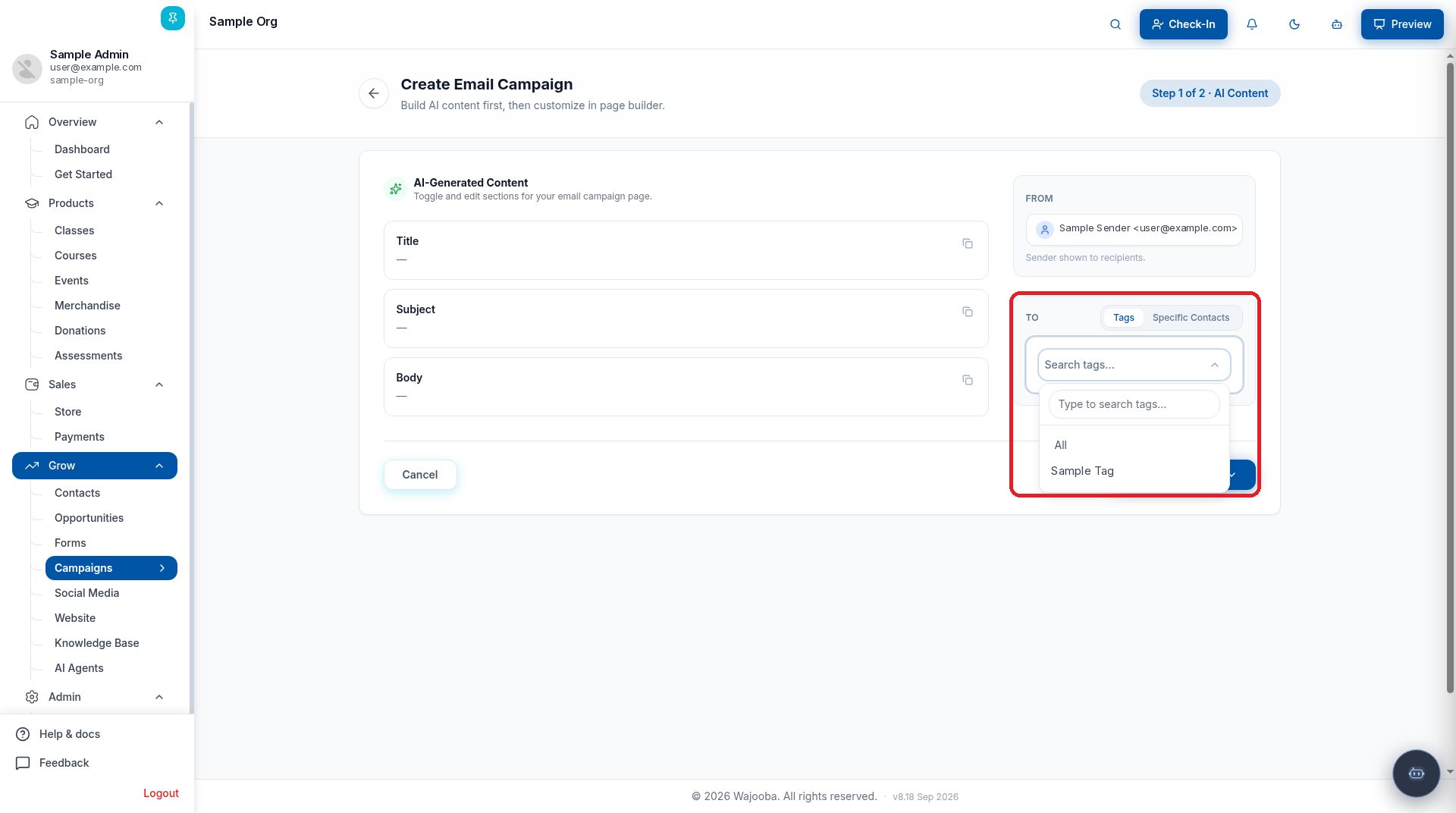
Tip: Use tags to send relevant emails to the right people, for example a "Sample Students Tag" for course updates and a "Sample Members Tag" for membership news.
Step 3: Design Your Email
Build your email using content blocks:
| Block | Use it for |
|---|---|
| Heading | The main title or section titles |
| Text | Your message and paragraphs |
| Image | Banners, photos, and graphics |
| Cards | Highlighting several items side by side, such as features or events |
| Button | A clear call to action, such as "Sample Button" linking to your page |
| Divider | Separating sections of the email |


Personalize with Merge Tags
| Merge tag | What it shows |
|---|---|
%recipient.firstName% | The recipient's first name |
%recipient.email% | The recipient's email address |
Note: Some contacts may not have a first name saved, so write greetings that still read well without it, such as "Hi there,".
Step 4: Send a Test Email
Always test before sending to your audience.
-
Go to Grow > Campaigns and open your campaign.
-
Click the Send Campaign icon (paper plane).
-
Choose the Test Campaign tab.
-
Enter the test email addresses, such as [email protected] and [email protected].
-
Click Send Test.
-
Check the email in your inbox on desktop and mobile.

Step 5: Send Your Campaign
- Open your campaign from Grow > Campaigns.
- Check the subject, audience, and content one last time.
- Click the Send Campaign icon.
- Confirm to send the campaign to your audience.
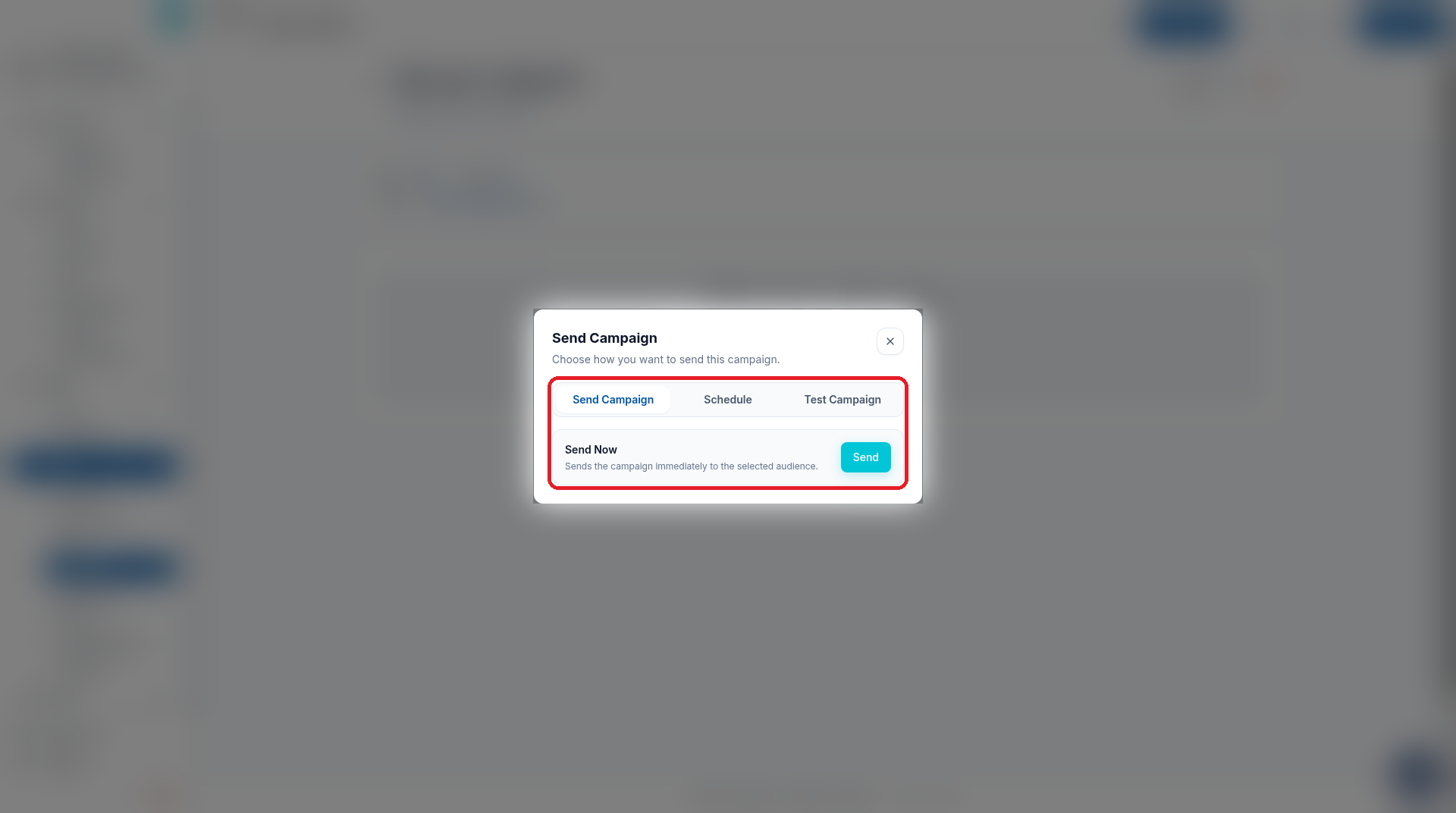
⚠️ Once a campaign is sent, it can't be undone. Double-check your audience before you send.
Editing a Campaign
| What you want to change | What to do |
|---|---|
| Subject line | Open the campaign and update the subject |
| Audience | Open the campaign and choose a different tag or "All contacts" |
| Email content | Open the campaign designer and edit the blocks |
| Campaign name | Open the campaign and rename it |
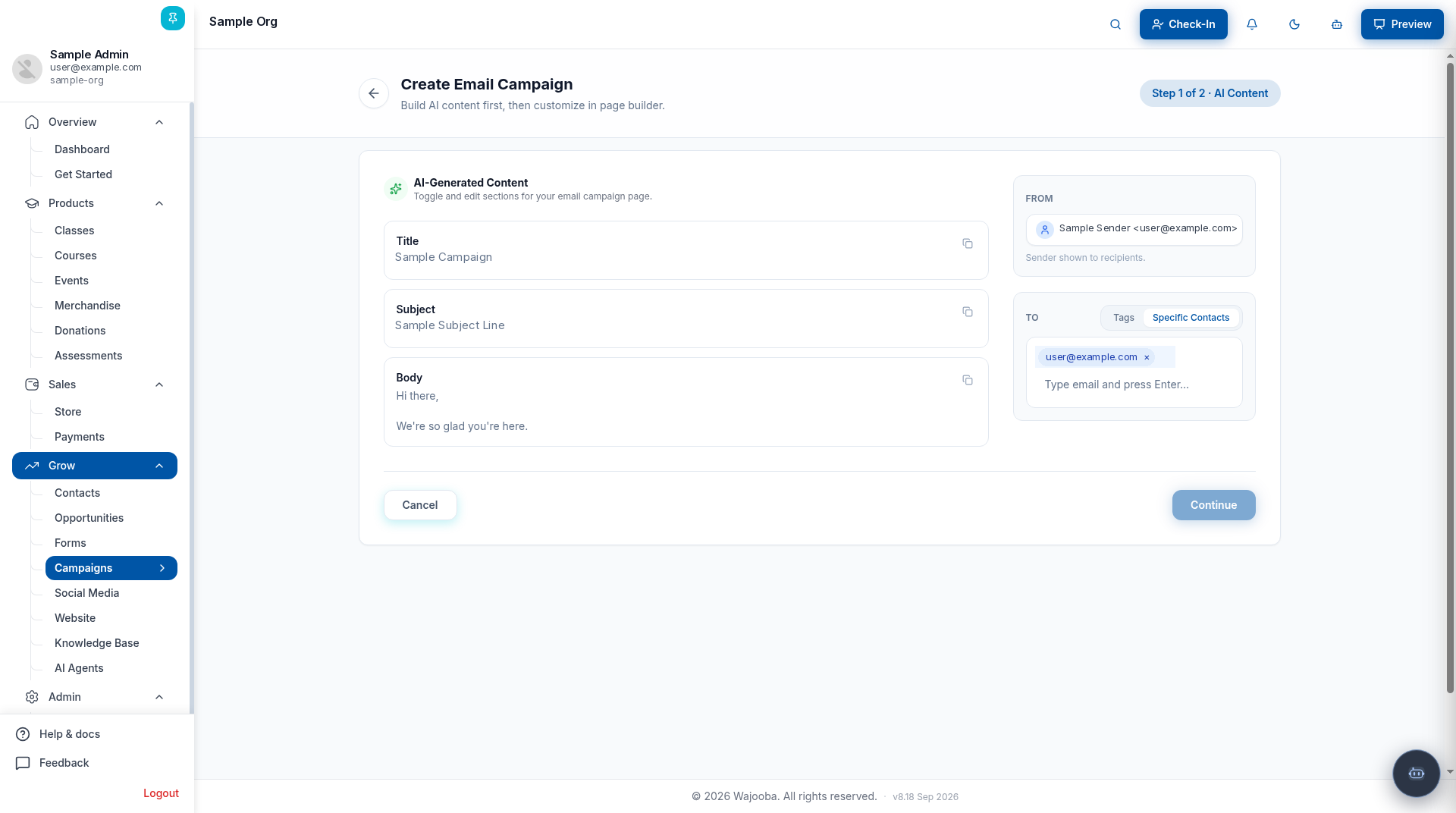 |
You can edit a campaign any time before it's sent.
Best Practices
| Tip | Why it helps |
|---|---|
| Keep subject lines short and clear | More people open emails they understand at a glance |
| Use one main call to action | Readers know exactly what to do next |
| Add alt text to images | The message still makes sense if images don't load |
| Always send a test first | You catch typos, broken links, and layout issues |
| Target with tags | Relevant emails get better engagement |
| Check on mobile | Many people read email on their phones |
Troubleshooting
| Problem | What to do |
|---|---|
| The test email didn't arrive | Check your spam folder and confirm the test address is correct |
| Images aren't showing | Make sure the image link is public and working |
| The first name is blank | That contact has no first name saved, so use a greeting that works without it |
| Wrong audience selected | Open the campaign and update the audience before sending |
| The email looks different from the preview | Send a test and review it in your inbox on desktop and mobile |
Want to create campaigns with AI? Connect Wajooba's MCP server to Claude or Grok Bot
Was this article helpful?
Still need help?
Can't find what you're looking for? Our team is happy to help.