

Embed the Wajooba Courses Calendar Widget!
Overview
Ready to make your course schedule shine on your website? ✨ This guide will walk you through, step-by-step, how to embed the Wajooba Course Calendar Widget. It's super simple to display your offerings and attract more sign-ups!
Prerequisites
- An active Wajooba account with upcoming courses.
- Your unique Wajooba API key (we'll show you where to find it!).
- Access to edit the HTML or content of your website (e.g., through your website builder or CMS).
Steps
Step 1: Secure Your Wajooba API Key
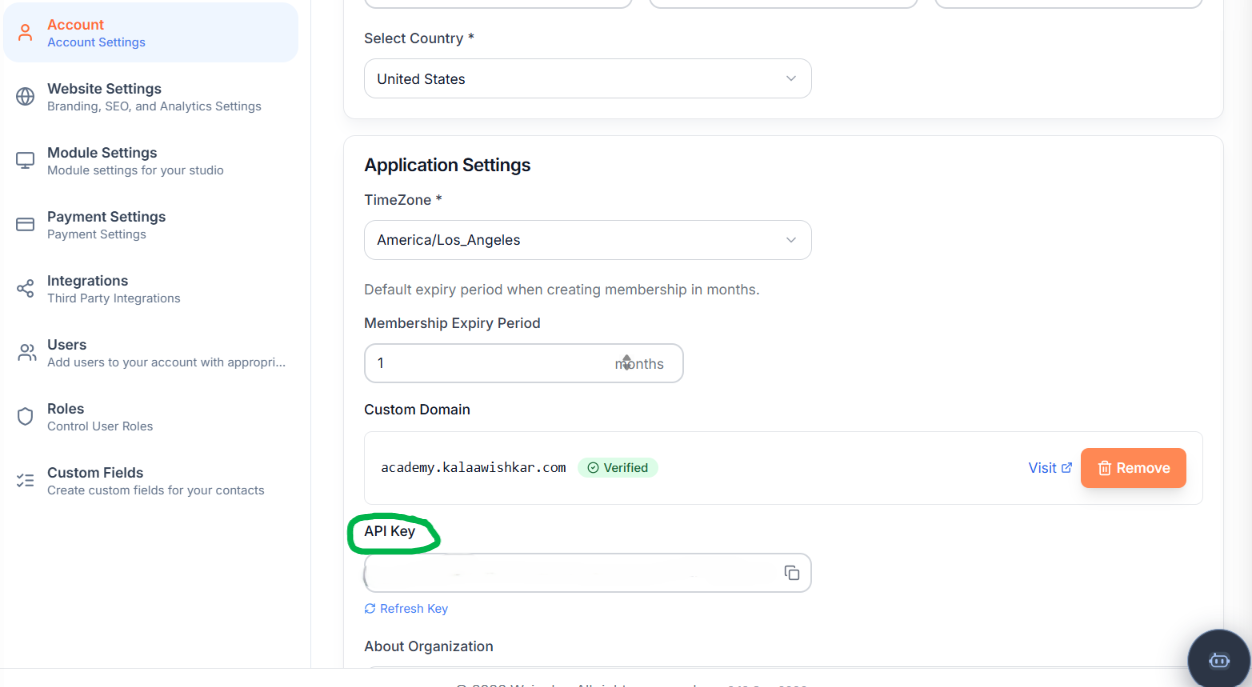
First things first, let's grab your special Wajooba API key! This key acts like a secret handshake, allowing your widget to securely connect to your Wajooba account and display your courses. Don't worry, finding it is a breeze:
- Log in to your Wajooba dashboard.
- Navigate to 'Settings'.
- Click on 'Account'.
- You'll find your API key listed there. Copy it somewhere safe for now – you'll need it in Step 3!
Step 2: Prepare Your Website for the Widget
Now, let's get your website ready! The Wajooba Course Calendar Widget needs a little space to live on your page. You'll be adding a small piece of code to an HTML area on your website where you want the calendar to appear. This might be in a 'Custom HTML' block in your website builder, a specific page template, or directly into an HTML file.
Step 3: Embed Your Wajooba Course Calendar Widget!
This is where the magic happens! You'll paste a simple code snippet into your website. This snippet tells your site to load the widget and where to put it. Make sure to replace YOUR_WAJOOBA_API_KEY with the API key you found in Step 1 and fill in any other desired customization.
Here’s the complete embed snippet. Copy and paste this directly into the HTML area of your website where you want the calendar to appear:
<script>
  window.CalendarWidgetConfig = {
    apiKey: 'YOUR_WAJOOBA_API_KEY', // REQUIRED: Replace with your actual Wajooba API Key
    title: 'Upcoming Course Schedule', // OPTIONAL: Customize your widget's title
    colors: {
      header: '#1A237E', // Example: Dark blue for the header
      buttons: '#4CAF50', // Example: Green for buttons
      links: '#2196F3', // Example: Blue for links
      todayHighlight: '#FFFDE7', // Example: Light yellow for today's classes
      rowHover: '#E3F2FD', // Example: Light blue for row hover
      borders: '#E0E0E0' // Example: Light gray for borders
    }
    // Add more configuration options here as needed
  };
</script>
<div id="calendar-widget-container"></div>
<script src="[WIDGET_JS_URL]"></script>
A Note on Security: Your API key grants access to your course data. While this widget is designed for public display, always be mindful of where and how you share your API key. We recommend confirming with Wajooba support about best practices for public-facing API keys.
Configuration Options Table:
| Option | Description | Default | Example |
|---|---|---|---|
apiKey | Your unique Wajooba API Key. This is essential for the widget to load your course data. | None (Required) | 'your-api-key-12345' |
title | The main title displayed at the top of your course calendar widget. Customize it to fit your brand! | 'Upcoming Course Schedule' | 'Our Exciting Classes!' |
colors | An object containing various color settings to match your website's branding. Available properties: header, buttons, links, todayHighlight, rowHover, borders. | (Wajooba's default styles) | { header: '#FF5722', links: '#00BCD4' } |
[OTHER_OPTION_NAME] | [Placeholder for other configuration options] | [Default value] | [Example value] |
Step 4: Understand What Your Visitors Will See
Once your widget is live, it’s going to beautifully display your upcoming courses! Here’s what your visitors can expect:
- Clear Class Listings: Courses are shown in a table format for a six-week window, starting with the current week.
- Detailed Rows: Each row clearly presents:
- Date and time: With a special 'Today' badge for current day classes.
- Location: Conveniently linked to Google Maps for easy directions.
- Course Name: Plus its description and instructor, if available from your Wajooba setup.
- 'View Details': A clickable link that opens the course page, allowing visitors to register directly.
- Easy Navigation: Your visitors can effortlessly search by course name, filter by location, and browse through future six-week periods. The current week will always be the earliest period available for viewing.
Step 5:Dive Deeper: How Your Widget Works (For the Curious!)
Ever wonder what’s happening behind the scenes? The Wajooba Course Calendar Widget is quite clever!
When your page loads, the widget.js script takes over. It then fetches all the necessary components and renders your schedule right into that <div id="calendar-widget-container"></div> you added. Your course schedule comes from Wajooba's secure API endpoint (https://api.onwajooba.com/plugin/classes). It uses your API key for authentication. For efficiency, the widget makes separate requests for each of the six weeks in the visible period and then intelligently merges all the results to present a complete, seamless view to your visitors.
Step 6: Handle Common Scenarios: Errors and Empty States
Don't worry, your widget is designed to be user-friendly even when things are quiet or go a little awry! If there are no courses scheduled for a particular period, or if there's a temporary issue loading the data, the widget won't just sit there blankly. It will display a clear, friendly message to your visitors. If a load fails, it will even include an option to retry, giving your visitors control.
Tips & Best Practices
- Always test your widget after embedding it to ensure it displays correctly and all links are working. A quick check on different devices is a great idea!
- Leverage the customization options to align the widget's colors and title with your brand. This creates a professional and cohesive experience for your website visitors.
- Promote your courses! Now that your schedule is beautifully displayed, share the page with your audience and encourage them to explore your offerings.
Troubleshooting
Encountering a hiccup? Don't fret, let's get you back on track!
- Widget Not Showing?
- Double-check that you've correctly copied and pasted the entire code snippet from Step 3 into your website's HTML.
- Ensure the
divelement has the exactid="calendar-widget-container". - Verify that the
[WIDGET_JS_URL]script tag is included at the end of the snippet.
- 'Invalid API Key' Message?
- Go back to Step 1 and confirm you've entered your Wajooba API key correctly. It's case-sensitive and needs to be exact!
- Make sure there are no extra spaces or characters around your API key in the
window.CalendarWidgetConfig.
- No Classes Displayed (but you know you have them)?
- Check your Wajooba account to ensure your courses are published and have future dates scheduled.
- Confirm your API key is correct (as above). A valid key but no courses will simply show an 'empty schedule' message.
- Custom Colors Aren't Showing?
- Verify that your color codes are valid hexadecimal values (e.g.,
#FF0000for red). - Ensure the
colorsobject is correctly formatted withinwindow.CalendarWidgetConfig.
- Verify that your color codes are valid hexadecimal values (e.g.,
What's Next
You've successfully launched your Wajooba Course Calendar Widget – congratulations! 🎉 Now, take these next steps to maximize its impact:
- Share Your Success: Announce your new, easy-to-view schedule on social media, in your newsletter, and wherever your audience connects with you.
- Monitor Engagement: Keep an eye on your website analytics. See which courses are getting the most views and where visitors are clicking. This can inform your future course offerings!
- Keep Your Wajooba Account Updated: Remember, the widget reflects what's in Wajooba. Regularly update your course details, add new classes, and manage registrations directly in your Wajooba dashboard.
Learn More
- Your Wajooba Dashboard (for API key and course management)
- Wajooba Support Portal (for further assistance)
Related Articles
- Optimizing Your Course Descriptions for Higher Conversions
- Marketing Your Online Courses: Strategies for Success
- Integrating Wajooba with Your Favorite Marketing Tools
Was this article helpful?
Related articles
Still need help?
Can't find what you're looking for? Our team is happy to help.