

How to Create a Form in Wajooba
Forms
💡 Prefer to use AI? You can create and manage forms just by chatting with an AI assistant like Claude or Grok Bot. See Create and Manage Forms with MCP.
Overview
Forms let you collect information from your students, clients, and event guests, such as registrations, waivers, feedback, and enquiries. Each form starts with built-in contact details (name, email, phone) and you can add your own custom fields, like dropdowns, checkboxes, or a class picker.
You can create and manage forms in two ways:
| Method | Best for |
|---|---|
| Forms module in Wajooba admin | Building and previewing forms visually |
| AI assistant through Wajooba MCP | Creating forms, adding fields, and publishing from a simple prompt |
Form Types
The Forms list in Wajooba admin shows your student registration and custom forms. You choose a form's type through the AI assistant (MCP).
| Form type | Use it for |
|---|---|
| Student Registration | Signing up new students (this is the default type) |
| Service Registration | Booking or registering for a service |
| Event Registration | Collecting details from event attendees |
| Custom | Anything else, such as feedback, enquiries, or surveys |
Form Settings
| Setting | What it does | Where to set it |
|---|---|---|
| Form name | The internal name you see in admin | Admin: Step 1, Name |
| Header and sub-header | The title and subtitle shown at the top of the form | Admin: Step 1, Header and Sub Header |
| Text before the form | An introduction or instructions shown above the fields | Set through the AI assistant (MCP) |
| Text after the form | A note shown below the fields, such as a thank-you or terms | Admin: Step 3, Footer |
| Name, Email, Phone | The built-in contact fields | Always included in admin (marked Required). The AI assistant can turn them on or off |
| Birthdate | Asks for the person's date of birth | Admin: Step 2, drag Date of Birth from Available Fields |
| Emergency contact | Asks for an emergency contact | Admin: Step 2, drag Emergency Contact from Available Fields |
| Signature required | Asks the person to sign, which is useful for waivers | Admin: Step 2, Signature Required checkbox |
| Trial signup form | Marks the form as a trial signup form (feeds the Trial Signup Agent) | Admin: Step 2, Trial signup form checkbox |
| Published | Turns the form's visibility on or off | Admin: form detail page, Published switch |
| Form type | Student, service, event registration, or custom | Set through the AI assistant (MCP) |
| Show on website | Makes the form available on your public website | Set through the AI assistant (MCP) |
| Publish to students | Makes the form visible to students in their account | Set through the AI assistant (MCP) |
| Disable form | Turns the form off without deleting it | Set through the AI assistant (MCP) |
Field Types
| Field type | What it collects | Example |
|---|---|---|
| Text | A short answer | Sample Short Answer |
| Text Area | A longer answer | Sample Comments |
| Number | A number | Sample Age |
| Header | A heading to split the form into sections (no answer) | Sample Section Heading |
| Check Box | A yes or no tick | Sample Consent |
| Radio Buttons | One choice from a list (up to 6 options) | Option A, Option B, Option C |
| Dropdown | One choice from a dropdown (up to 6 options) | Option A, Option B, Option C |
| Class picker (under the Special category) | Lets people pick from your upcoming classes | Sample Class Picker |
Each field can be marked as required and can have help text that appears inside or under it.
Class Picker Options
| You want people to choose from | Field name to use |
|---|---|
| All upcoming classes | [CLASSES] |
| Classes with one tag, such as "sampletag" | [CLASSES_sampletag] |
| Classes with either of two tags | [CLASSES_sampletagone_sampletagtwo] |
| Classes whose tag contains a word, such as "sample" | [CLASSES_sample_like] |
The label people see for a class picker is taken from its help text.
Create a Form in Wajooba Admin
Step 1: Open Forms
- Sign in to your Wajooba admin.
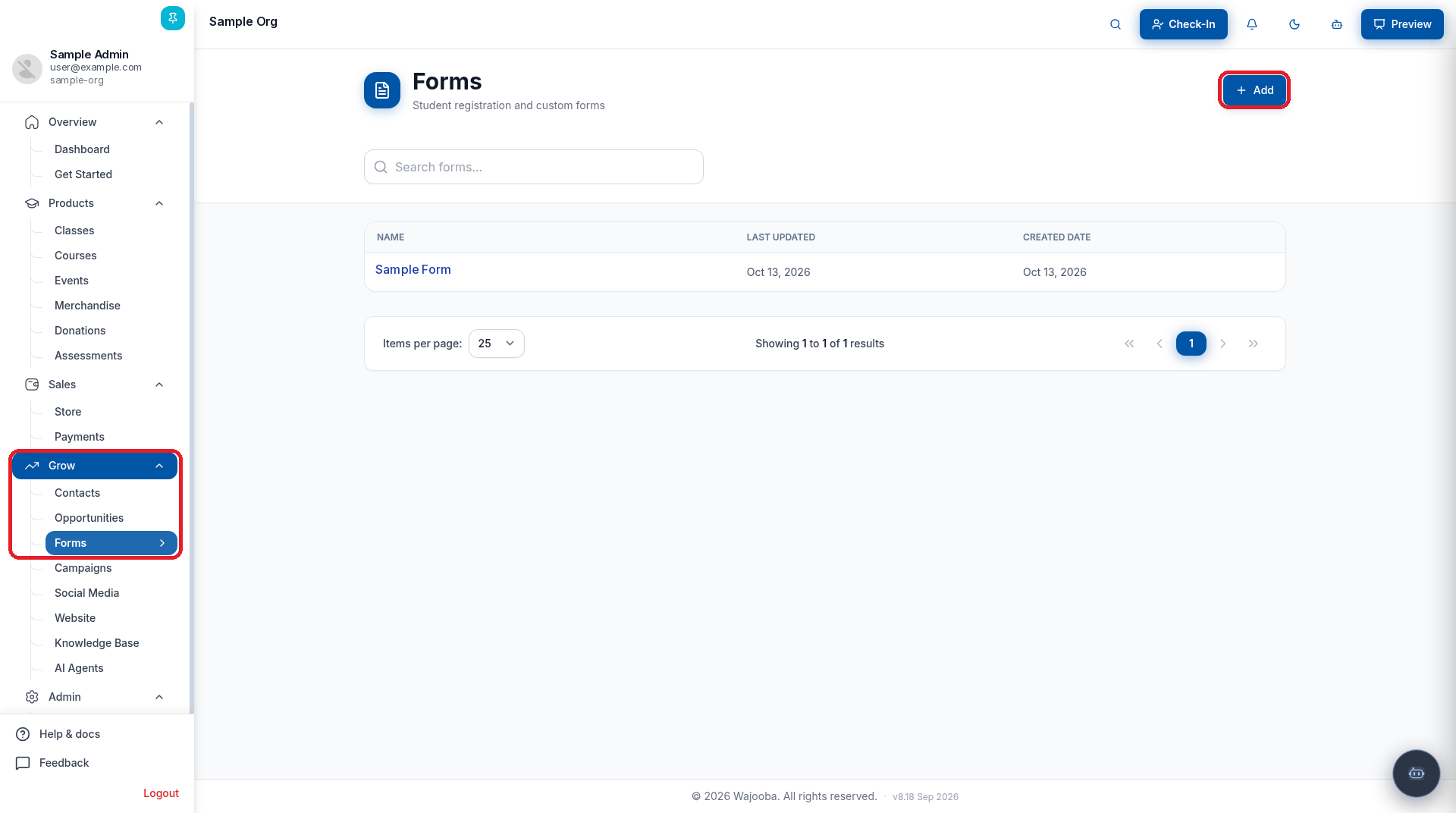
- In the left menu, go to Grow > Forms.
The Forms page ("Student registration and custom forms") lists your forms with their Name, Last Updated and Created Date. Use Search forms... to find a form.
Step 2: Name the Form (Step 1 of 3)
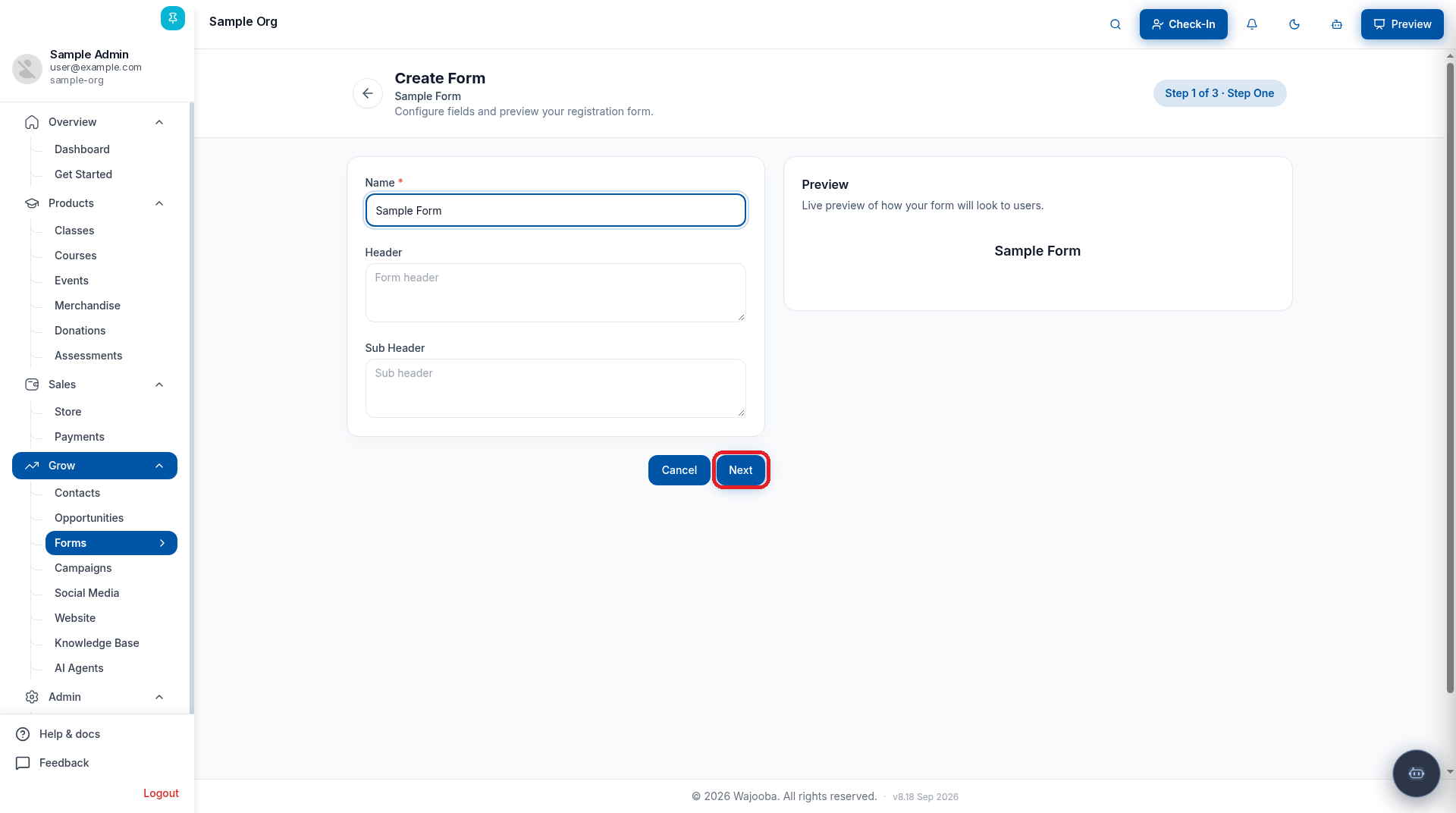
- Click + Add. The Create Form page opens on Step 1 of 3.
- Enter a Name (required), such as "Sample Form".
- Optionally enter a Header and Sub Header. The Preview on the right shows how your form will look to users.
- Click Next.
Step 3: Choose the Fields (Step 2 of 3)
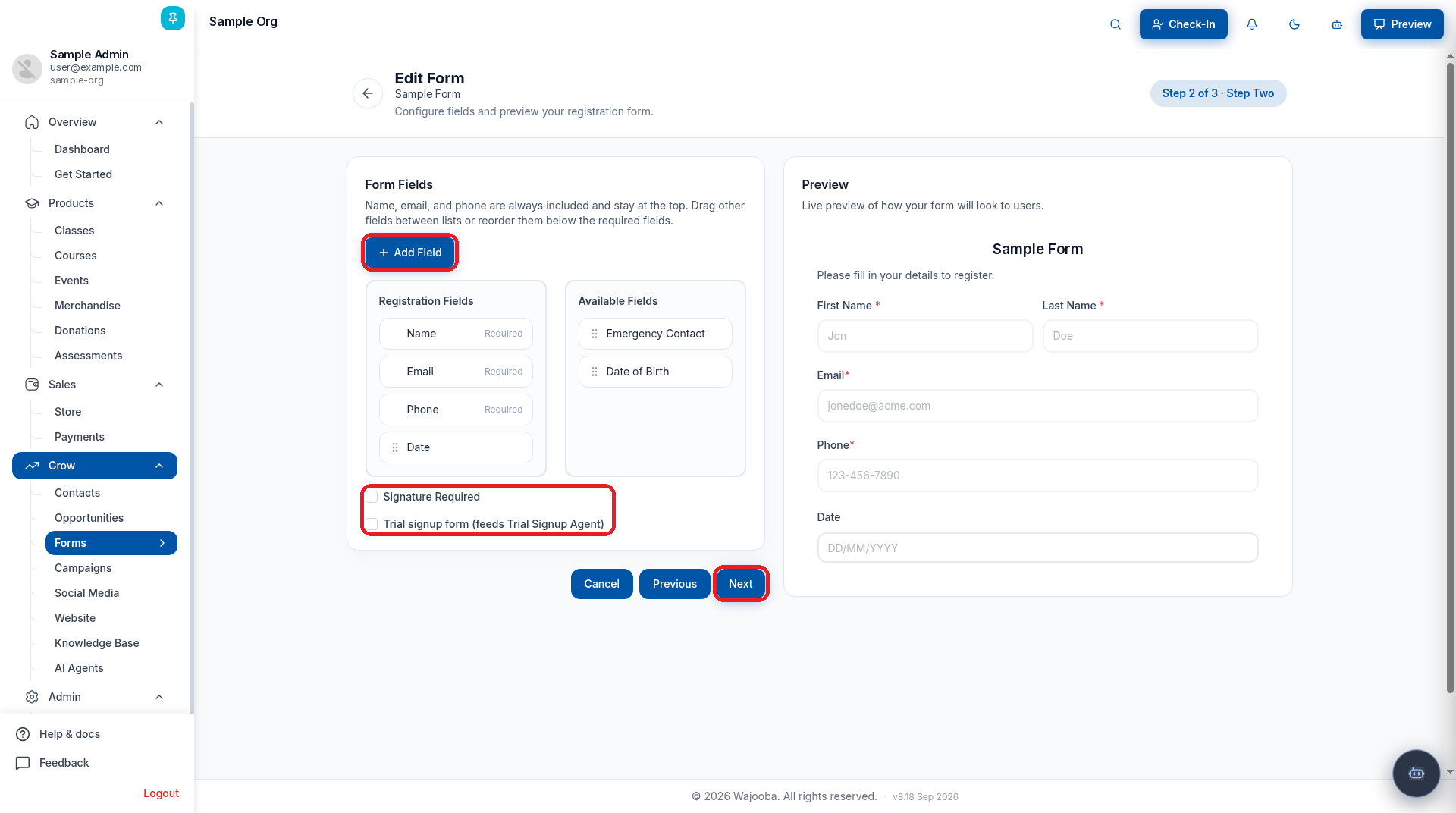
- Under Form Fields, Name, Email and Phone are always included and stay at the top (marked Required).
- Drag fields between Registration Fields and Available Fields (such as Emergency Contact and Date of Birth), and drag to reorder them below the required fields.
- Tick Signature Required if people must sign the form, and Trial signup form (feeds Trial Signup Agent) if this is a trial signup form.
Step 4: Add a Custom Field
- Click + Add Field. The Create Custom Field window opens.
- Choose a Field category: Standard (Text, dropdown, checkbox, radio, and more) or Special (dynamic fields such as a class picker).

- Choose a Type: Text, Number, Text Area, Check Box, Radio Buttons, Header or Dropdown.

- Enter a Name (the field label), such as "Sample Short Answer".
- Enter a Field tag in lowercase with no spaces, such as "sampleshortanswer".
- Optionally add Help text (placeholder or help text).
- Turn on Is Mandatory if the field is required, then click Submit.
- Back on Step 2, click Next.
Step 5: Add a Footer (Step 3 of 3)
- Enter a Footer, the text shown after the form, such as a thank-you note or terms.
- Click Submit to save the form.

Step 6: Publish and Share the Form
Open the form from Grow > Forms to see its detail page:
| Control | What it does |
|---|---|
| Published switch | Turns the form's visibility on or off |
| Copy form link | Copies the public link to the form |
| View form | Opens the public form |
| Edit Form | Reopens the 3-step form editor |
| Delete form | Deletes the form |
| Responses tab | Shows submissions, with All PDF and a Download PDF option for each response |
Click View form to see the public form. It shows your fields, a security verification, and a Submit form button.

Good to Know
| Topic | Details |
|---|---|
| Custom fields | + Add Field creates a new custom field from Step 2 of the form editor. |
| Required contact fields | Name, Email and Phone are always included and stay at the top of every form. |
| Dropdown and radio options | Each one can have up to 6 options. |
| Field tags | Use lowercase with no spaces, such as "sampletag". |
| Unpublishing vs deleting a form | Turning off the Published switch hides the form. Delete form removes it. |
| Duplicates | Use Search forms... on the Forms page to check whether a form already exists before you add a new one. |
| Sharing a form | Use Copy form link on the form's detail page to share the public form. |
Troubleshooting
| Problem | What to do |
|---|---|
| A field isn't showing on the form | Open the form, click Edit Form, and on Step 2 drag the field from Available Fields into Registration Fields. |
| "Field tag can't be empty and use lowercase without spaces" | Enter a field tag in lowercase with no spaces, such as "sampleshortanswer". |
| The class picker is empty | Check that you have upcoming published classes with the tag you used. |
| People can't open the form | Check that the Published switch is on for the form. To show it on your website, use the AI assistant (see the link below). |
Want to create forms with AI? Connect Wajooba's MCP server to Claude or Grok Bot
Was this article helpful?
Related articles
Still need help?
Can't find what you're looking for? Our team is happy to help.